Mastering No-Code Automation: Transforming Small Business Operations Without Coding Skills
No-code automation has revolutionized the way small businesses operate, enabling even non-technical founders and employees to leverage powerful technology solutions. By using visual interfaces and drag-and-drop tools, businesses can now automate repetitive tasks, integrate multiple software platforms, and boost productivity—without writing a single line of code. In this comprehensive guide, we’ll explore what no-code automation is, its key benefits for small businesses, and provide a step-by-step walkthrough to get started with your first workflow.
Understanding No-Code Automation
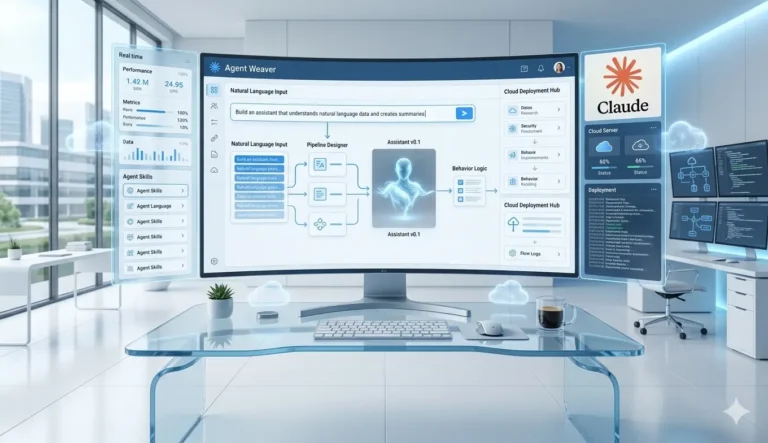
No-code automation platforms empower users to design and deploy customized workflows using graphical interfaces. Instead of relying on IT professionals or developers, business owners and team members can automate processes such as data entry, client onboarding, report generation, and task management. These tools often offer hundreds of pre-built integrations with popular software like Gmail, Slack, QuickBooks, Airtable, Shopify, and more.
Key Benefits of No-Code Automation for Small Businesses
No-code automation provides compelling advantages tailored to small business needs:
- Lower Costs and Faster Deployment: Avoid the high costs and delays of traditional software development. Build and iterate workflows yourself in hours.
- Empowerment & Flexibility: Non-technical staff can experiment, prototype, and refine automated solutions based on real-world feedback.
- Increased Productivity & Reduced Errors: Automating data transfers and communications helps reduce manual mistakes, ensuring every step is performed consistently.
- Seamless Integration: Connect your favorite applications to create cohesive business systems and eliminate information silos.
- Scalability: Start with simple automations and build more sophisticated workflows as your business expands.
Common Use Cases in Small Businesses
Small businesses across industries leverage no-code automation for diverse processes, including:
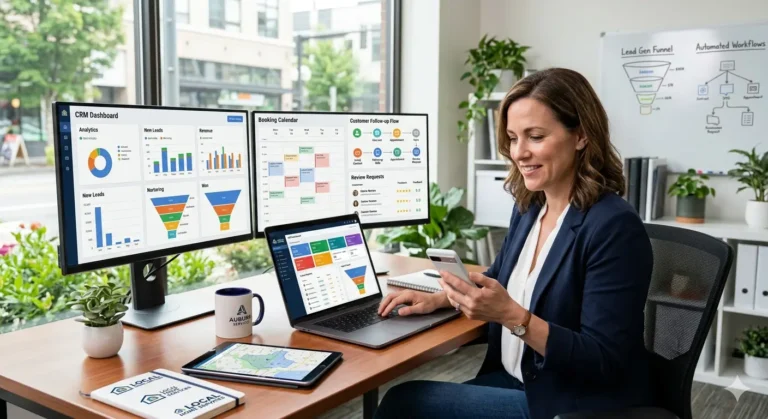
- Lead Capture & CRM Updates: Automatically route form submissions or emails into the right place within a CRM.
- Invoice Processing: Move new invoice data from email or PDFs into bookkeeping systems, like QuickBooks or Xero.
- Order Fulfillment: Sync e-commerce orders with shipping and inventory platforms without manual effort.
- Marketing Automation: Send personalized emails and social media posts based on customer actions or calendar events.
- Appointment Scheduling: Integrate booking tools and calendars to minimize double-bookings or manual confirmations.
Step-by-Step Tutorial: Automating Client Onboarding Without Code
Let’s walk through a practical example: automating the onboarding process for new clients using a popular no-code automation tool. We’ll use Make (formerly Integromat) as our platform. The process will trigger when a new client completes a Typeform questionnaire, automatically creating a project in Asana and sending a personalized confirmation email via Gmail.
Step 1: Define Your Workflow Objective
First, outline what you want to achieve. In this case, whenever a new Typeform submission is received, you’d like to:
- Create a new project in Asana, pre-filled with the client’s details.
- Send a personalized welcome email to the client through Gmail.
Step 2: Connect Your Apps in Make
Sign in to your Make account. Click on “Create a new scenario.” Drag and drop the Typeform, Asana, and Gmail modules onto the canvas. Connect your accounts securely using OAuth or API keys as prompted.
Step 3: Set Up the Trigger
Configure the Typeform module to watch for new responses. Map the form fields so that client names, emails, and other details are recognizable for downstream actions.
Step 4: Add Asana Project Creation
Drag the Asana “Create Project” action module. Map client information from Typeform to the appropriate Asana fields—project name, description, assigned team members, etc. You can also add an “Add Task” action if you want to auto-generate initial tasks.
Step 5: Personalize and Send the Welcome Email
Add the Gmail “Send Email” module. Use the client’s email (from Typeform) as the recipient, and personalize your email body with their name and details. Insert dynamic data for a seamless customer experience.
Step 6: Test and Refine
Run the scenario in “Test mode” and submit a sample Typeform response. Verify that a new project is created in Asana and the client receives the correct email. Make adjustments as needed to handle special cases or edge conditions—like missing data or invalid email addresses.
Tips for Effective No-Code Automation Adoption
- Start Small: Tackle a single pain point first. Once you build confidence, expand to related processes.
- Map Out Business Processes: Document your existing workflows on paper or using digital diagrams before translating them into automated sequences.
- Involve Team Members: Collect input from staff who handle these tasks daily—they’ll spot pitfalls and suggest clever automations.
- Monitor and Iterate: Track which automations save the most time or prevent the most errors, and be ready to tweak as your business grows.
- Watch Out for App Limits: Some no-code platforms cap how many automations or tasks you can run monthly without upgrading your plan. Scale accordingly!
Common Mistakes to Avoid
Even the best automation strategy can fall short if common pitfalls aren’t avoided. Here’s what to watch out for as a small business:
- Over-automating too soon: Implement automations incrementally to avoid breaking processes or confusing staff.
- Lack of documentation: Always keep records of what each automation does and who is responsible for its upkeep.
- Ignoring security: Protect sensitive business and client data by using secure connections, access controls, and strong authentication practices on your automation platform.
- Not testing fully: Use “test mode” extensively and build in checks for edge cases (e.g. missing data, duplicate triggers).
- Forgetting about updates: Periodically revisit your automations as business apps change or business needs evolve.
How to Choose the Right No-Code Automation Tool
There’s an expanding landscape of platforms specializing in no-code automation, each with strengths and weaknesses. Consider the following when picking a tool:
- Supported Integrations: Does the tool connect to all your key apps, like your accounting, CRM, or marketing platforms?
- Ease of use: Look for clean, intuitive interfaces and active user communities.
- Scalability: Can you grow from a handful of simple automations to increasingly complex workflows?
- Pricing: Compare entry-level and advanced pricing tiers, including limits on executions and premium integrations.
Popular platforms include Zapier, Make, Workflowy, and Airtable.
Expanding Automation: Beyond the Basics
Once you’ve mastered a handful of automations, explore advanced possibilities such as multi-step workflows, branching logic, time-based triggers, and integrations with AI-driven services for data analysis or content generation. You might combine automation with machine learning tools to sort client queries, predict inventory needs, or even recommend products in emails automatically.
For more in-depth instructions, check out our no-code automation guide.
Conclusion
No-code automation is more than a buzzword—it’s a proven strategy that small businesses can use to save time, minimize errors, and gain a technological edge. By starting with clear goals, involving your team, and embracing experimentation, you can unlock new efficiencies across your workflow. As these tools evolve to include more advanced features like AI and predictive analytics, the future of small business automation looks brighter—and more accessible—than ever.